
Guide: How to File a Tax Return in Slovakia Online

This guide is part of TI Capital’s free service for filing your tax return independently. You can fill out your tax return using our online form — it will automatically generate a ready-made XML file that you just need to upload to the portal and submit following the instructions below. The entire filing process takes about 10–15 minutes.
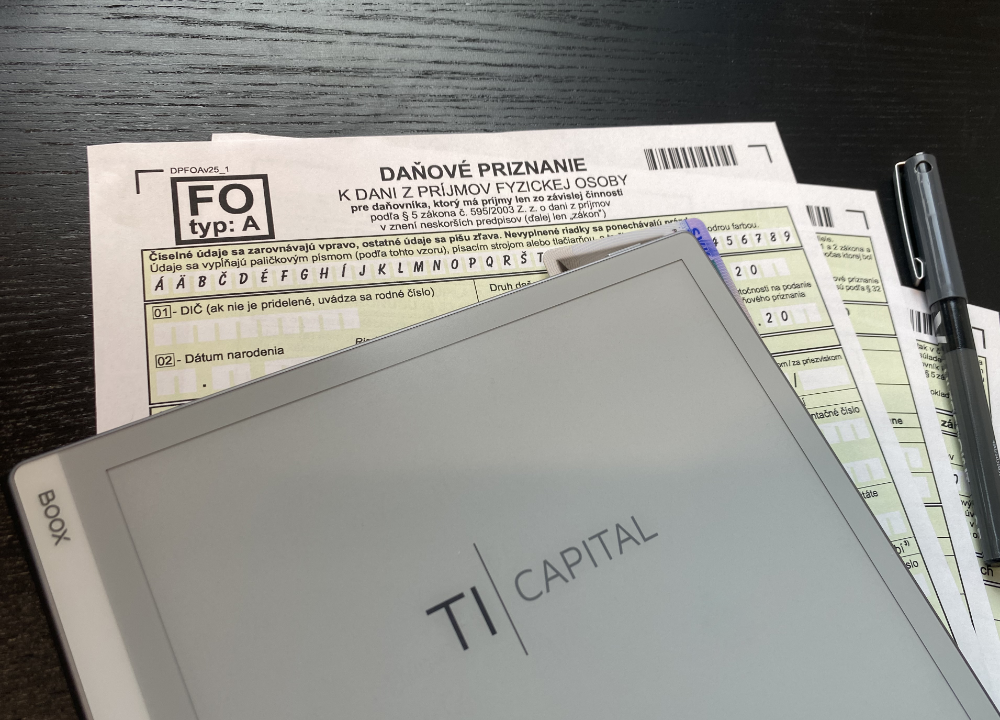
Who is this guide for and why:
- Individuals who are filing their personal income tax return (daňové priznanie k dani z príjmov fyzickej osoby) electronically on their own.
- Those who are filing a tax return in Slovakia for the first time and want to complete the process without mistakes.
- TI Capital clients who have used our free online form and received a ready-made XML file for submission.
- Anyone who already has a completed XML file of their tax return (from an accountant or another source) and needs to submit it through the Financial Administration portal.
What you will need:
Before you begin, make sure you have everything you need:
- XML file of the completed tax return — received from an accountant or generated using the free TI Capital online form.
- Electronic identity document with a chip — residence permit card (doklad o pobyte s čipom) or občiansky preukaz s čipom for Slovak citizens.
- BOK code for your card. If you don’t have one — guide on how to get and activate a BOK code.
- Computer with a USB smart card reader (or a smartphone with NFC as a contactless reader).
- Installed and up-to-date eID klient application.
- Installed D.Signer .NET application for electronic signature. Details — in the guide on how to get an electronic signature.
- Active registration on the Slovensko.sk portal. If you are not yet registered — guide on registration on Slovensko.sk.
- Active registration on the Finančná správa portal. We described the registration process in detail in our guide.
Step 1: Log in to the Financial Administration portal
- Launch the eID klient application and insert your chip card into the reader.
- Go to the Finančná správa website and click «Prihlásenie».
- Select the login method: «Prihlásiť sa cez slovensko.sk».
We recommend logging in using your chip document (doklad o pobyte / občiansky preukaz), as it will also be needed at the electronic signature stage.
After logging in, the system will ask you to select a subject — choose yourself as an individual (fyzická osoba) and click «Nastaviť».
Step 2: Selecting the tax return form
In your personal account, go to «Katalógy» → «Katalóg formulárov».
In the catalog, scroll down to the section «Daň z príjmov fyzickej osoby» (highlighted in green) and expand the relevant subsection:
- Type A (DPFOAv25) — income from dependent activity (employment under an employment contract).
- Type B (DPFOBv25) — income from business activity (živnosť), foreign income and other income.
Click the notepad icon to the right of the form name to open it.
The letter «v» and the number in the name indicate the year: DPFOAv25 = Type A tax return for 2025.
Step 3: Uploading the XML file
- In the left panel, click «Načítať zo súboru» (Load from file).
- A warning will appear that the upload will overwrite the current data in the form — click «Áno».
- Select the prepared XML file of your tax return.
After uploading, the data will be displayed in the form.
Step 4: Data verification
Click the «Kontrolovať» button (Verify) to validate the data.
If the verification is successful — proceed to signing.
If errors are found, the portal will indicate the specific fields with issues. In this case, make the necessary changes and verify the tax return again.
Step 5: Signing and submitting
- Click «Podpísať» (Sign) — the D.Signer .NET application window will open.
- Select the signing method and enter your BOK code.
- After successful signing, a green mark «Dokument bol úspešne podpísaný» will appear — click «Potvrdiť».
- Click «Podať» (Submit) to send the tax return.
Done — your tax return has been submitted!
Tax payment
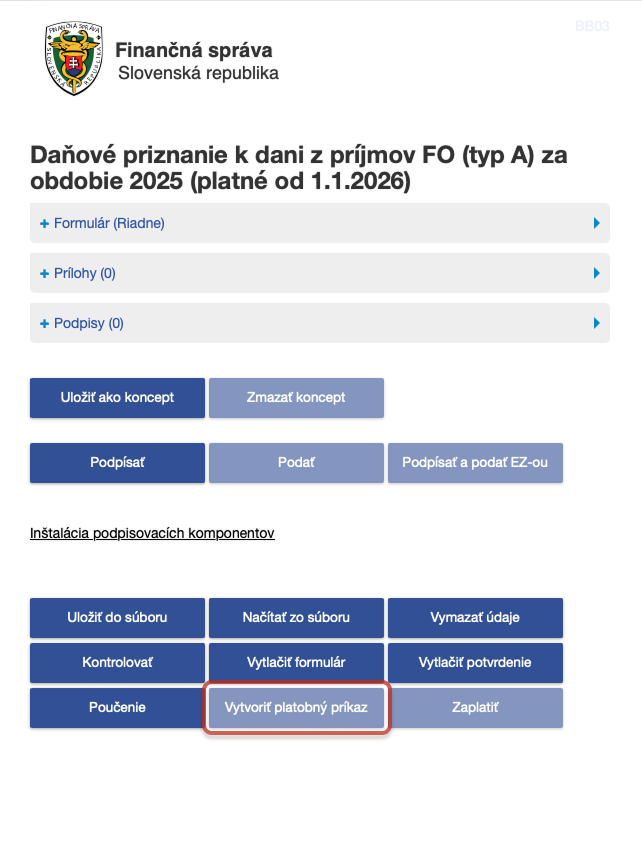
Payment immediately after submission If your tax return includes tax due for payment, the «Vytvoriť platobný príkaz»(Create payment order) button will become active after submission. Clicking it will generate a PDF with a QR code for payment via your mobile banking app.
When scanning the QR code, please note:
- The recipient name must be entered manually: Finančné riaditeľstvo Slovenskej republiky.
- Variabilný symbol for the 2025 tax return: 1700992025.
Carefully verify all payment details before sending the payment.
If you are filing a tax return for the first time
For your first filing, you most likely do not yet have a personal taxpayer account number — OÚD (osobný účet daňovníka). The «Vytvoriť platobný príkaz» button may be inactive.
Don’t worry — after processing your tax return, the tax authority will assign you an OÚD and send it by letter to the address specified in your tax return.
Important: if the letter with your OÚD arrives after the filing deadline (31.03 or 30.06 with an extended deadline), this is not a violation. No late payment penalty will be charged — provided that the tax return was filed on time and the tax is paid immediately after receiving the payment details.
How to find your OÚD and pay the tax
You can check whether an OÚD has been assigned to you through the Vytvorenie platobných inštrukcií service on the Financial Administration portal.
Steps:
- Click «Generovať číslo účtu» next to the «Číslo účtu» field.
- Enter your rodné číslo (without the slash) in the «DIČ alebo Rodné číslo» field and click «Overiť OÚD».
- If an OÚD has been assigned — it will be displayed. If not — the message «Nepodarilo sa získať OÚD» will appear. Try again later.
- In the «Druh dane / Účel platby» dropdown, select: «Daň z príjmov fyzických osôb rezidentov aj úhrada dane na základe DP FO typ A a DP FO typ B».
- «Suma» — the tax amount. Use a comma for the decimal part (e.g.: 123,45).
- «Variabilný symbol»: 1700992025 (for the 2025 tax return).
- «Dátum splatnosti» — we recommend entering today’s date and paying immediately.
- Generate the QR code, scan it in your mobile banking app and make the payment.