
Registration in the goAML system is a form with four tabs. Filling it in took us five minutes. This guide walks you through the form field by field, with screenshots; the screenshots show a fictitious company. Why you have to register and by when is explained in our article on the AML Act amendment.
In brief
- You register at stork.minv.sk/goAMLWeb_PRD → "Zaregistrovať sa" → "Povinná osoba".
- The form has four tabs: Povinná osoba, Administrátor/správca, Prílohy, Náhľad a registrácia.
- Have ready your IČO, registered address, company e-mail and phone, the administrator's details and a non-public proof of your business licence: the trade licence certificate (osvedčenie o živnostenskom oprávnení) or the confirmation of registration (potvrdenie o vykonaní zápisu). The FSJ did not accept a public extract from orsr.sk from us.
- After submission, FSJ staff approve the request. You choose your username and password yourself during registration.
- A request submitted by 31 January 2027 is on time according to the FSJ; it will not fine you for late registration.
What to prepare in advance
| Data | Where to find it |
|---|---|
| IČO, exact name, legal form | extract from the Commercial Register or the Trade Register |
| Registered address | extract from the register |
| Company e-mail and phone | — |
| Name, e-mail, phone of the administrator | the person who will work with goAML |
| Trade licence certificate or confirmation of registration (scan or PDF) | delivered by the trade licensing office or the registry court, for example to your electronic mailbox |
| The activity that makes you an obliged entity | § 5 of the AML Act: for example accountant, real-estate brokerage, organisational and economic adviser |
Step 1 · Open the goAML system
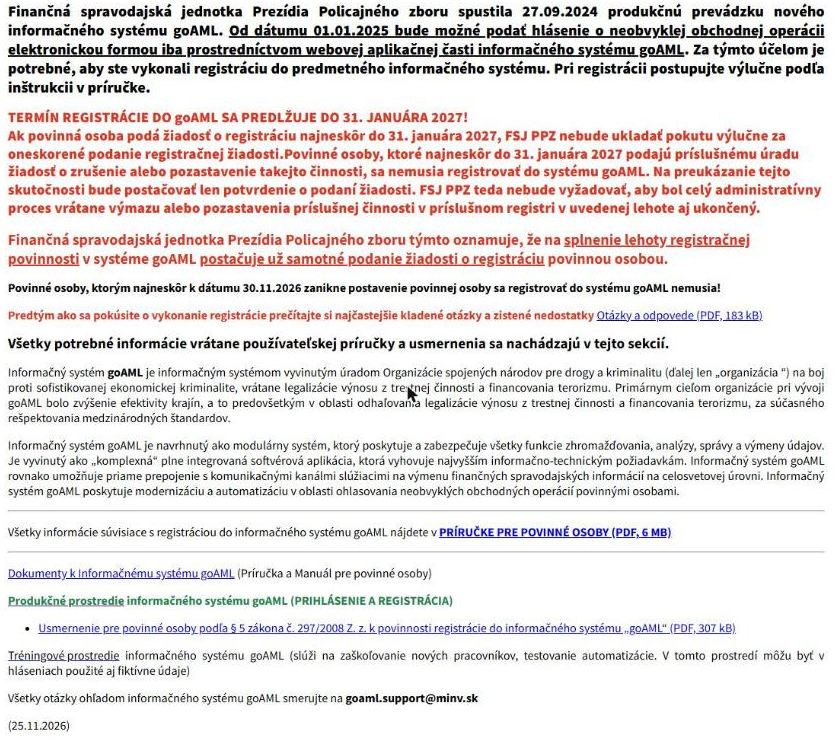
The link to the system is on the Slovak Ministry of Interior website, on the Financial Intelligence Unit (FSJ) page about goAML. Click "Produkčné prostredie informačného systému goAML (PRIHLÁSENIE A REGISTRÁCIA)".
Step 2 · Click "Zaregistrovať sa"
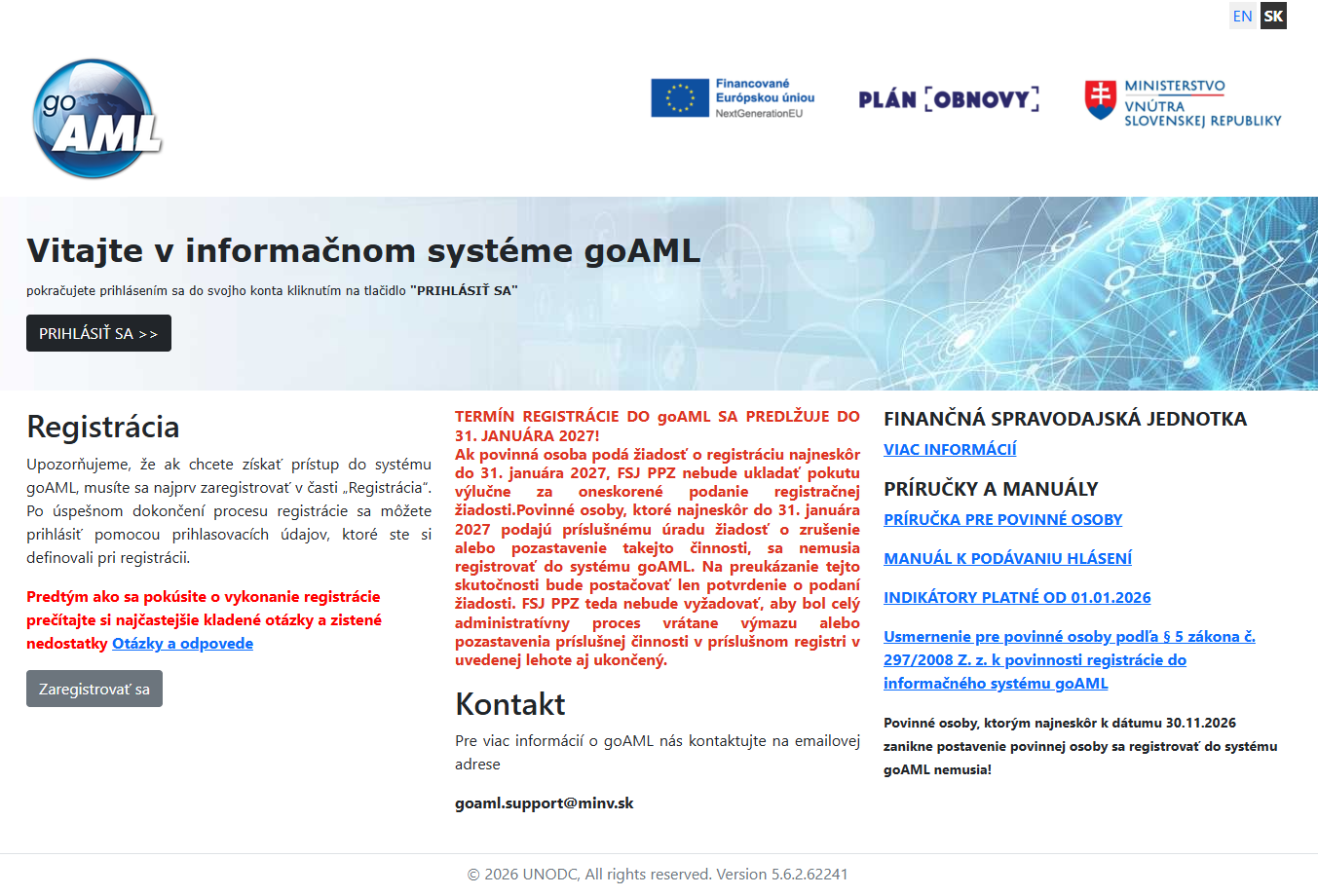
On the goAML home page you can switch the language at the top right (EN or SK). Click the "Zaregistrovať sa" button on the left, under the heading "Registrácia".
Step 3 · Choose "Povinná osoba"
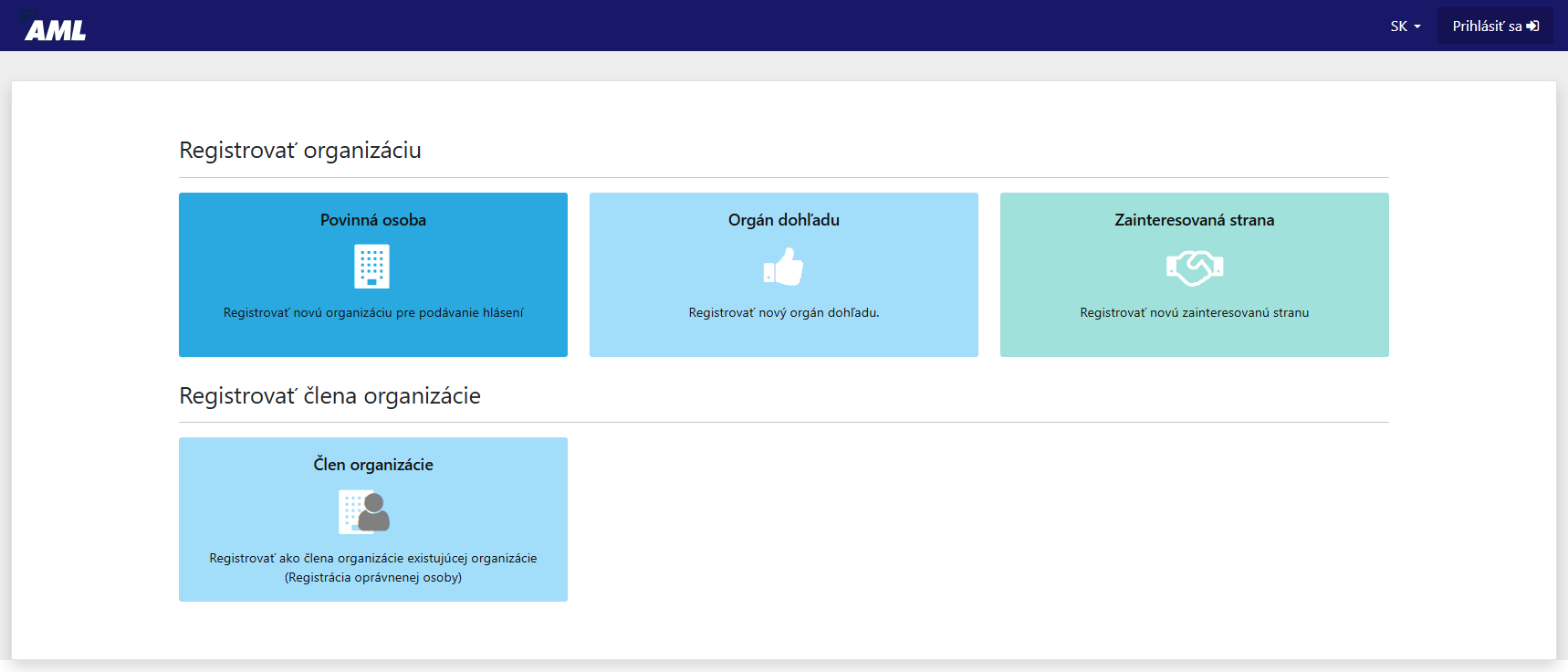
In the "Registrovať organizáciu" section, click the blue tile "Povinná osoba".
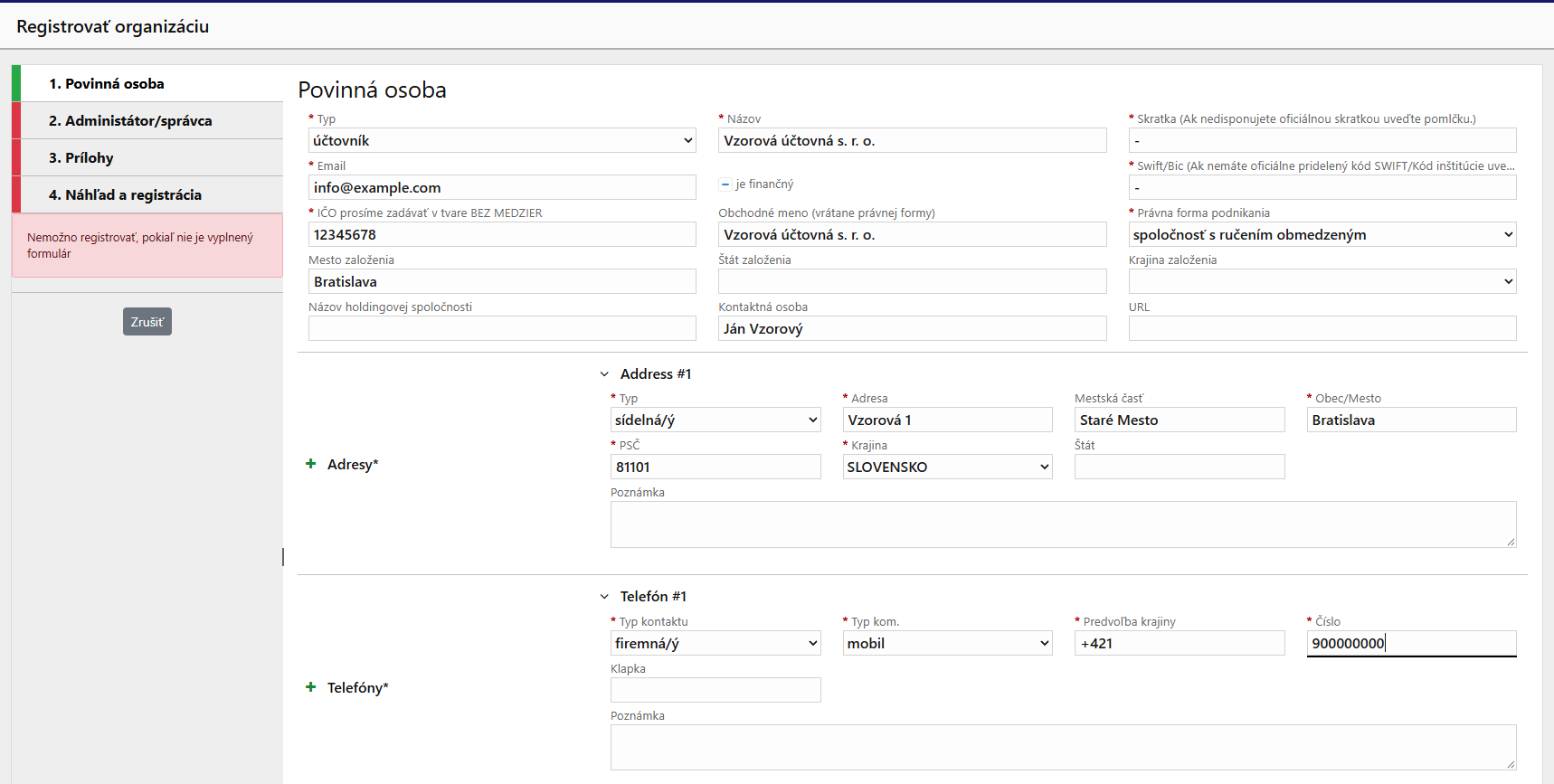
Step 4 · Tab 1: Povinná osoba
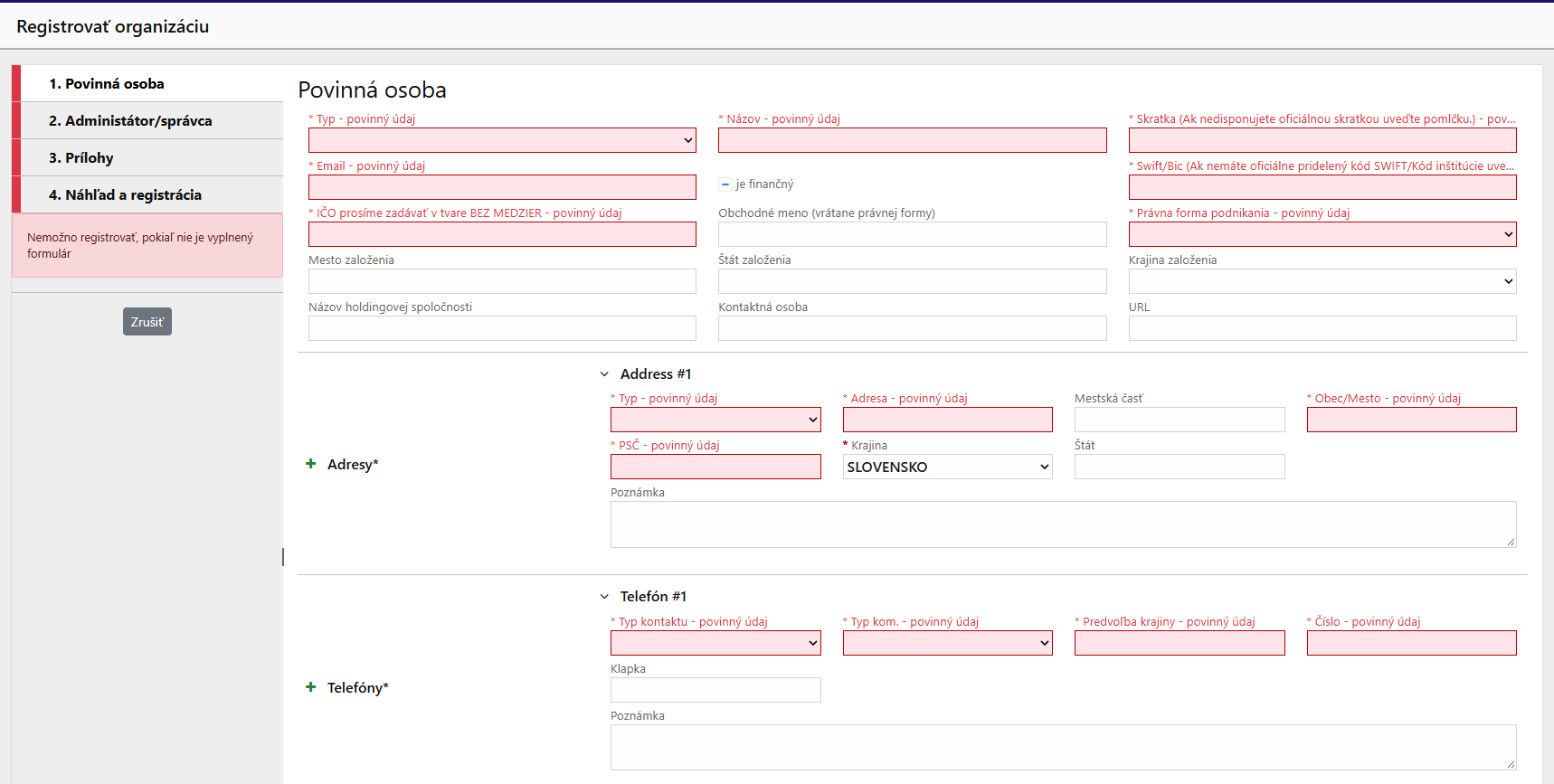
A form with four tabs on the left opens. Mandatory fields are marked with a red asterisk and stay highlighted in red until filled in.
What to fill in:
| Field | What to enter |
|---|---|
| Typ | the activity that makes you an obliged entity, for example "účtovník" (accountant) |
| Názov | the company name |
| Skratka | if you have no official abbreviation, enter a hyphen "-" |
| the company e-mail | |
| Swift/Bic | if you are not a bank, enter a hyphen "-" |
| IČO | without spaces |
| Obchodné meno | name including the legal form (optional) |
| Právna forma podnikania | for example "spoločnosť s ručením obmedzeným" or "Fyzická osoba – živnostník" |
| Kontaktná osoba | optional |
| Adresa: type, street, town, postcode, country | "sídelná/ý" and the registered address |
| Telefón: contact type, communication type, country code, number | for example "firemná/ý", "mobil", "+421", number without the code |
Step 5 · Tab 2: Administrátor/správca
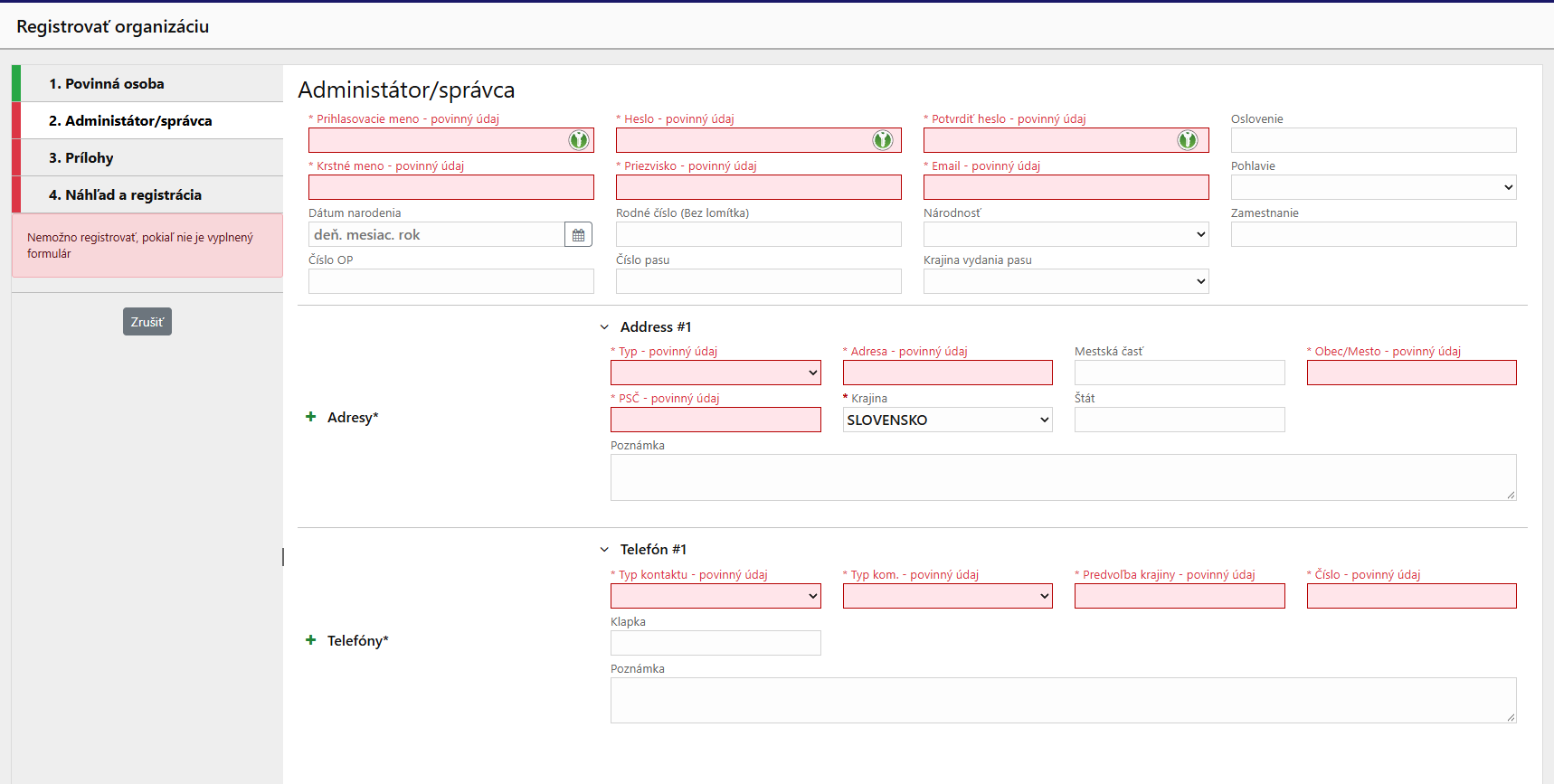
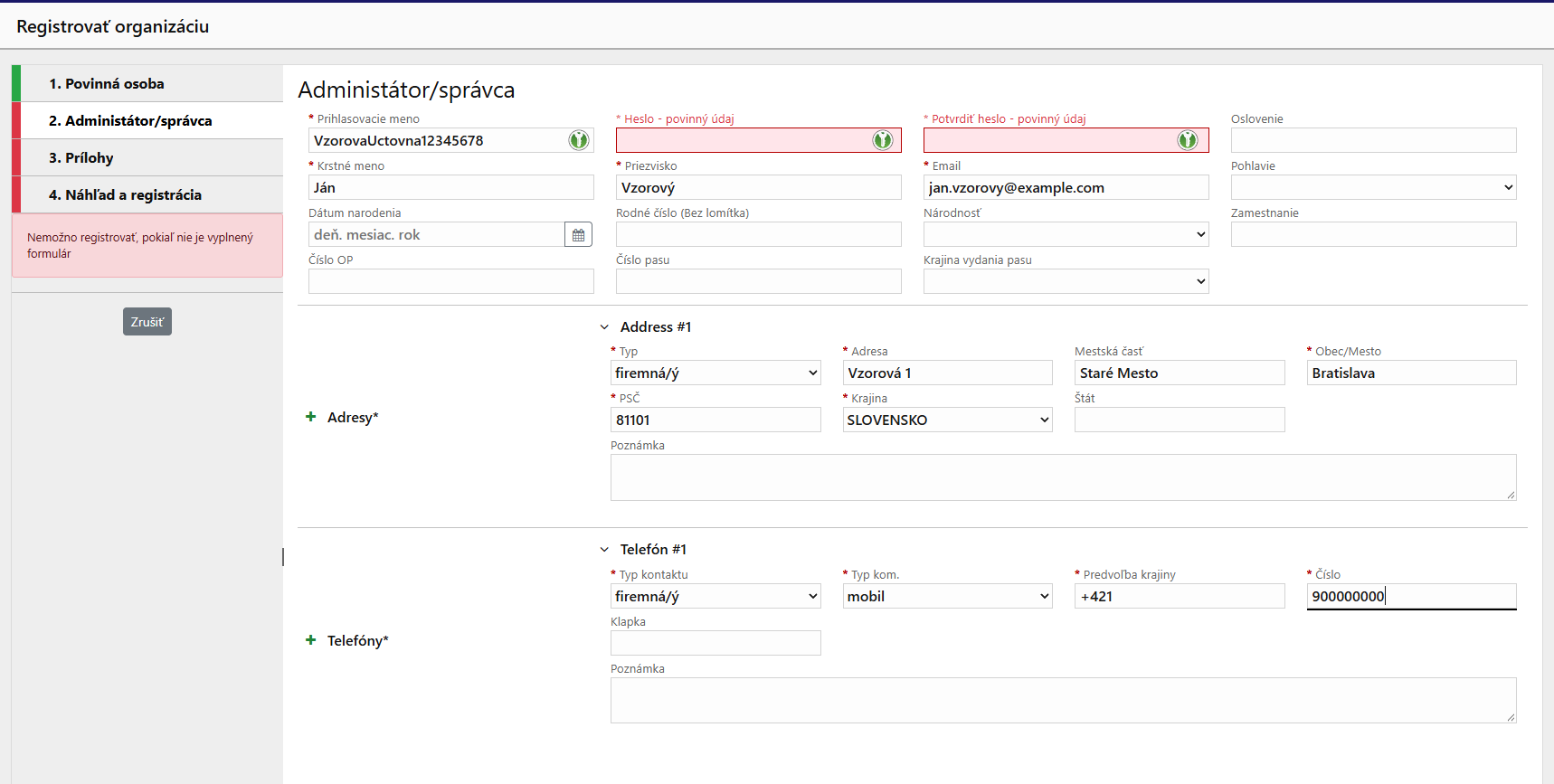
The administrator is the person who will work with goAML and whom the FSJ will contact first. It can be a managing director or an authorised employee.
| Field | What to enter |
|---|---|
| Prihlasovacie meno | username: at least 4 characters, no spaces; the FSJ recommends including the company identifier, for example name and IČO |
| Heslo / Potvrdiť heslo | the password you will log in with |
| Krstné meno, Priezvisko | the administrator's first and last name |
| the administrator's e-mail; the approval confirmation goes here | |
| Date of birth, rodné číslo, ID card number, passport | optional |
| Adresa | the company address is enough (type "firemná/ý") |
| Telefón | can be the same as the company phone |
Step 6 · Tab 3: Prílohy
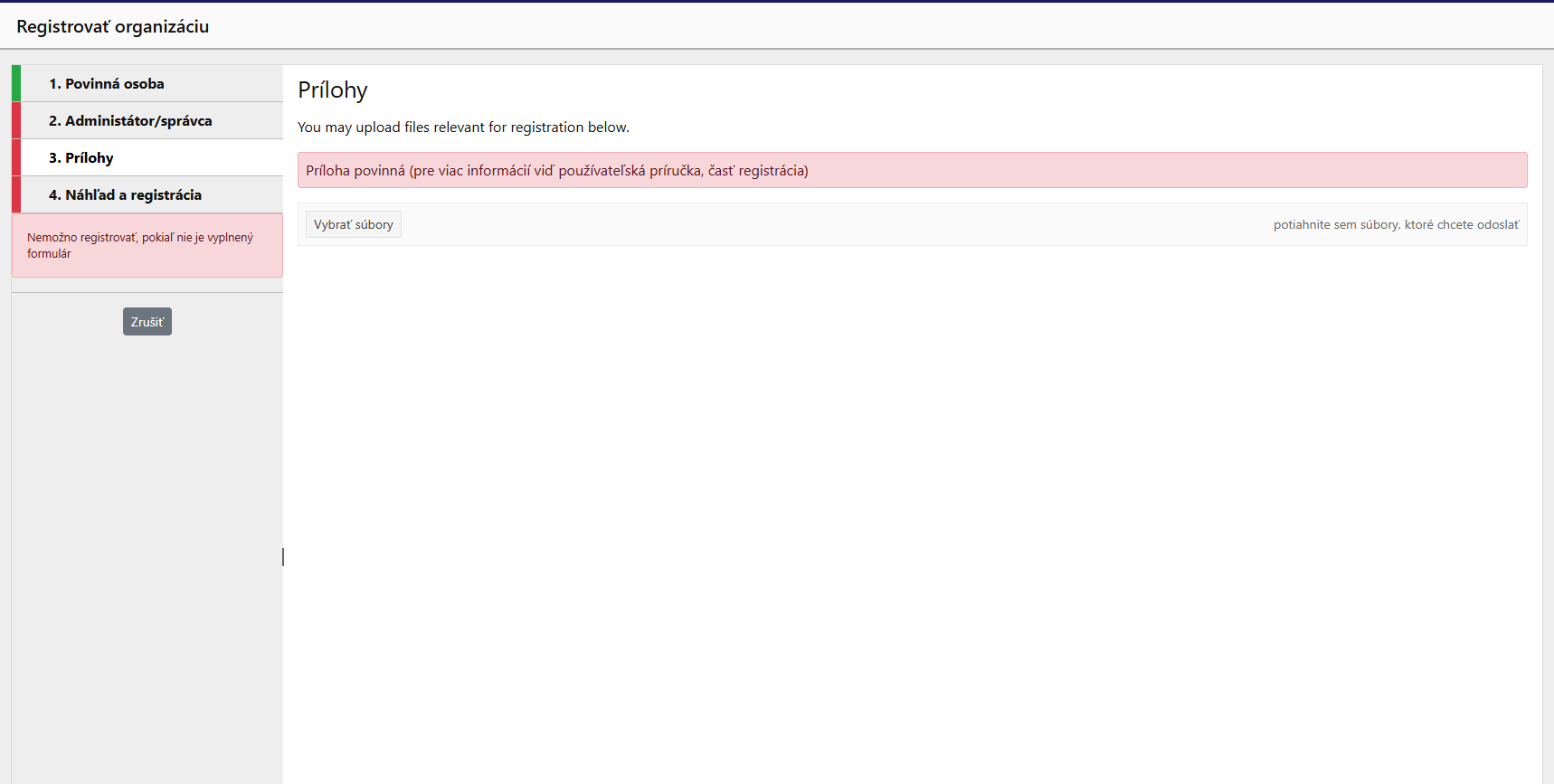
Attach proof of your business licence. It must be a document that is not publicly available. An ordinary extract from orsr.sk, which anyone can download, does not prove that the registration is really being submitted by your company.
Suitable attachments according to the FSJ manual:
- a copy of the trade licence certificate (sole trader),
- a copy of the confirmation of registration in the Commercial Register (s. r. o., a. s.), for example an extract from the Commercial Register usable for legal purposes,
- another equivalent document depending on the type of obliged entity: confirmation of membership in a professional chamber, a certificate of professional competence, a decision of the National Bank of Slovakia.
Upload the file with the "Vybrať súbory" button or drag it into the marked area. The system accepts common formats including PDF, DOCX, XLSX, JPG and PNG.
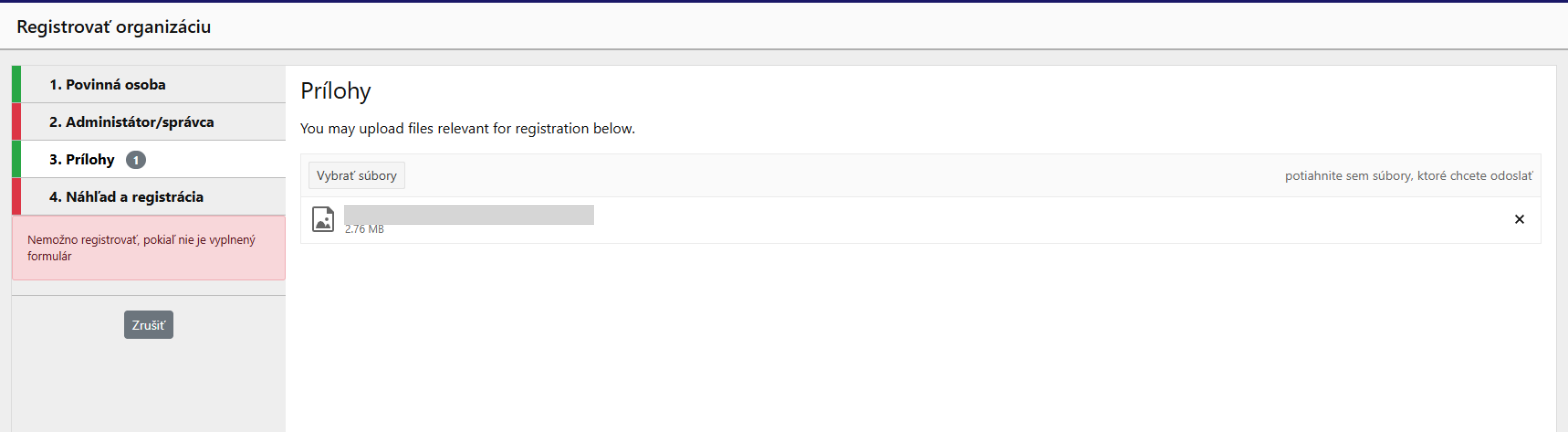
You cannot submit a correction until the FSJ decides on the first request. The system rejects a new request for the same company with the message "Prihlasovacie meno sa používa" and, after changing the username, "Názov organizácie sa používa": both the username and the company name remain taken by the request that has not yet been decided. We verified this ourselves.
Step 7 · Tab 4: Náhľad a registrácia
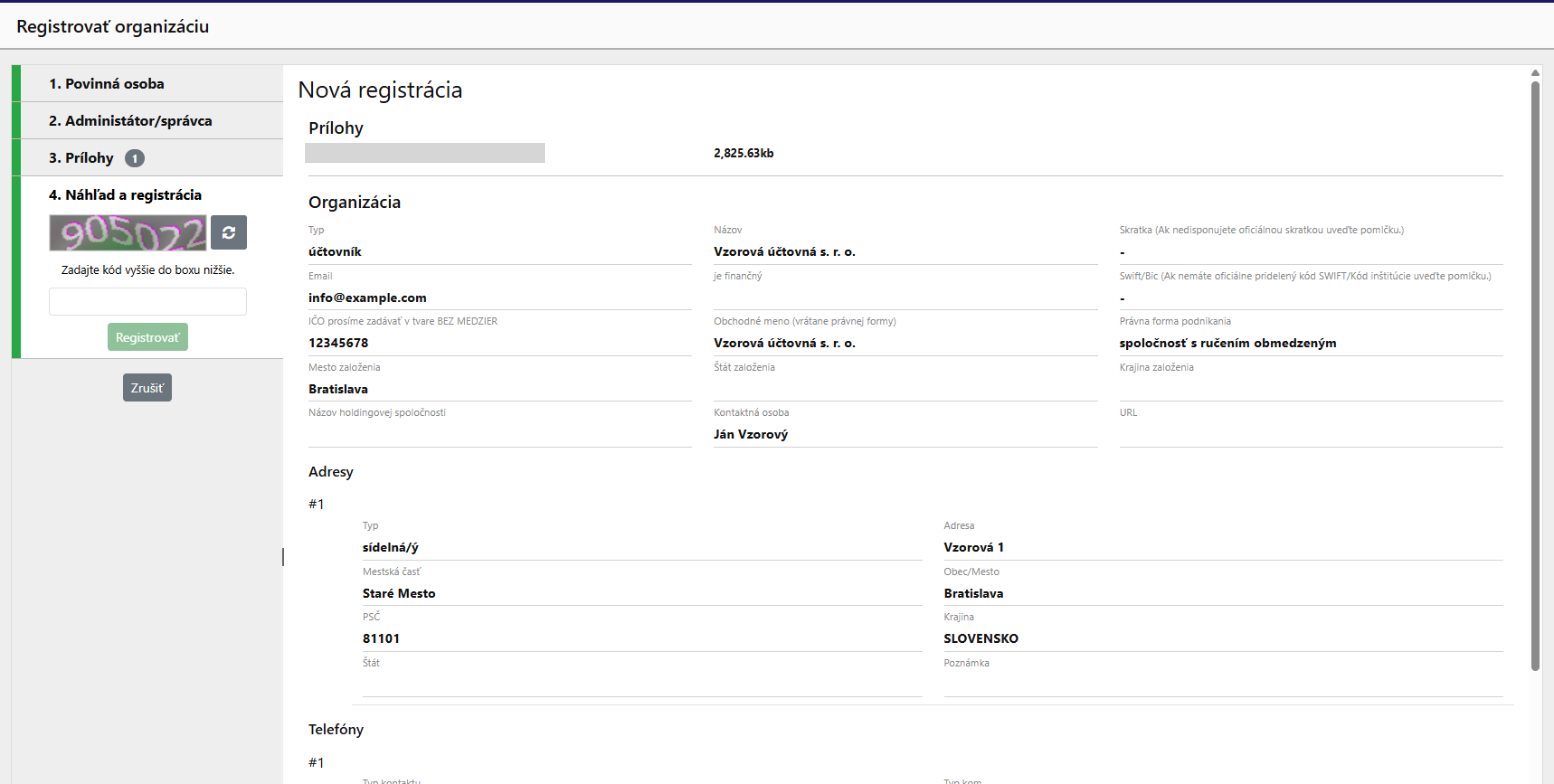
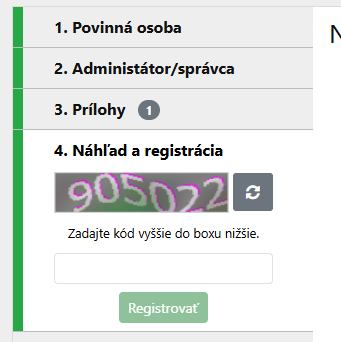
This tab becomes available only when all the previous ones are green. It shows an overview of all the data. Check it, copy the verification code (CAPTCHA) and click "Registrovať".
Step 8 · Confirmation of submission
After sending, the message "Informácie o registrácii boli podané" appears with the reference number of your request. An e-mail also arrives at the addresses you entered.
Step 9 · Approval and first login
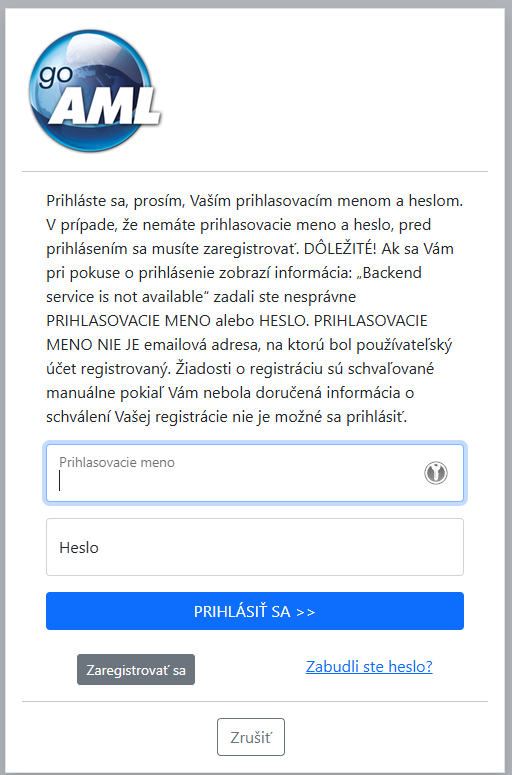
FSJ staff approve requests manually. Once approved, the administrator receives an e-mail with the organisation's identifier ("goAML Reporting Entity ID"). Then log in on the goAML home page with the "Prihlásiť sa" button, using the username and password you chose.
If two-factor authentication is enabled on your account, a QR code appears at the first login. Scan it with Google Authenticator, and from then on also enter the six-digit code from the app. With a different setting, a one-time code arrives by e-mail.
Common mistakes
- Registering in the training environment instead of production: it does not count.
- Changing the language halfway through the form: the data is lost.
- Missing attachment: tab 4 does not become available.
- Attachment in .asice format: the system does not accept it; attach the document as a PDF.
- A publicly available register extract as the attachment: the FSJ rejects the registration and you have to submit it all again. And you cannot submit the new request before the rejection of the first one arrives.
- Spaces in the IČO: enter it without spaces.
- E-mail instead of the username at login: the system reports "Backend service is not available".
- Choosing "Člen organizácie" instead of "Povinná osoba" when registering the company for the first time.
What the registration means and what remains open after it, the internal AML programme, fines and the option of cancelling a trade, is covered in the article goAML registration takes five minutes. What hasn't changed matters more.
Sources
- FSJ: goAML information system, notice on the deadline until 31 January 2027 and links to the environments
- FSJ: Manual for obliged entities (goAML), chapter 1 Registrácia
- FSJ: Registration in goAML, questions and answers
- FSJ: Guidance on the duty to register in goAML, 14 October 2026, one registration for several activities
- goAML production environment